

Setting Up mCashier:
- Before you proceed with actual transactions please spend a couple of minutes to customize the application, enable functionalities you need and disable once you do not intend to use.
Go to "Settings", Admin Settings and enter your (Admin) password
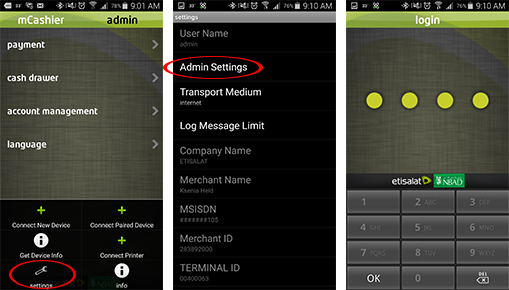
- Ability to create multiple users: Go to user profile, create user, input desired password, and confirm the choice.
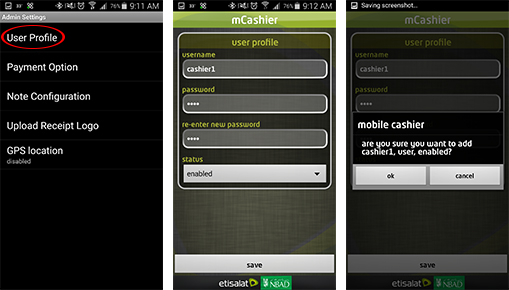
- Ability to chose the payment methods, enable or disable tips.
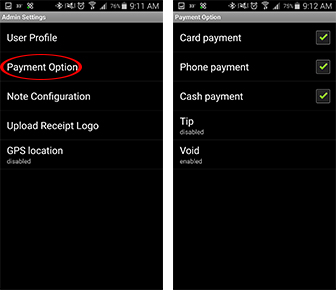
- Ability to add and customize the "Note" section that will allow you to capture important details including invoice number, product code, etc.
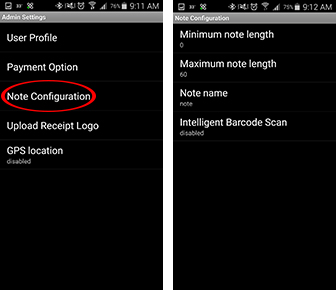
- Intelligent Barcode Scan will help you to automate data entry during payment acceptance.
When Intelligent Barcode is disabled scanned barcode is displayed in the "Note" section within set Minimum and Maximum note length. When Intelligent Barcode is enabled the information is retrieved and displayed based on the structure of 2D Barcode or QR Code.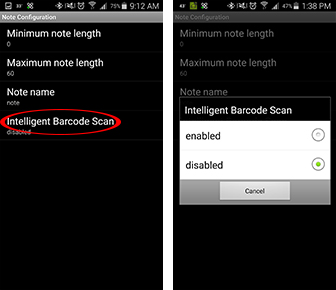
How to create intelligent barcode:
- Intelligent 2D barcode structure

- The barcode is created based on the following logic: First 6 digits (456123 in the example) are considered as DATA for "Note" section and represent an Invoice, Location Code or any reference of your choice
- Last 6 digits capture amount in Fils (example 000575 is the amount in Fils and amount on mCashier device is shown as AED 5.75)
- Once scanned, amount and "Note" are not editable
- Intelligent QR code structure

- The information is presented as Amount | Note |||
- The first field is Amount
- Second field is "Note" (invoice number, reference code, etc)
- In the above example the amount is 10.50 AED and "Note" field is AMX5432109876
- Once scanned, amount and "Note" are not editable
- Intelligent 2D barcode structure
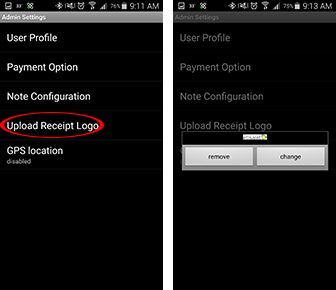
- Ability to upload logo to be printed on the physical receipt (Please make sure the image size in no more then 150kb)
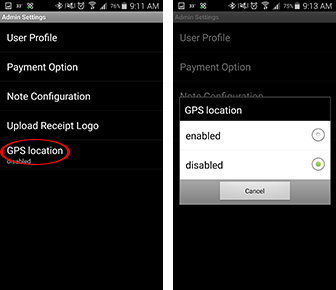
- Ability to enable GPS location to be captured on the receipt
To start using mCashier you will need to:
- Open application, click on Payment, and select Pay with card. Make sure mCashier device is switched on and paired.

- Enter amount due on Mobile Cashier device and swipe the card. If this is a smart card (card with a chip on it) insert the card in the mCashier.
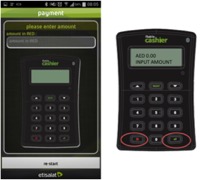
- Pass mCashier device to the Customer and ask him to confirm transaction by entering his PIN.
- On the background your mobile phone will request the Bank to authorize the transaction. If transaction is successful, the money are as good as on your Bank account.
- You have an option to send a receipt to the customer via SMS or email directly from your phone or print physical receipt upon customer request.
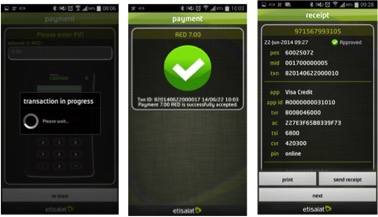
How to void a transaction
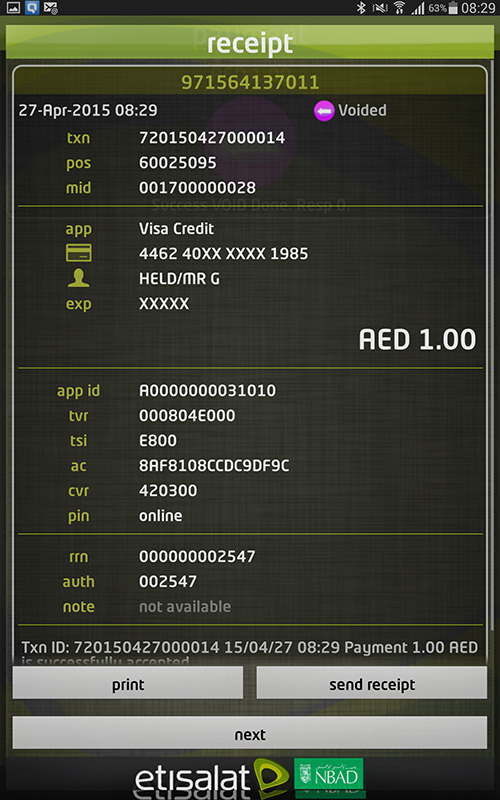
Voiding transaction (void is possible on the same day when the transaction was performed. Card presence is mandatory to facilitate void)
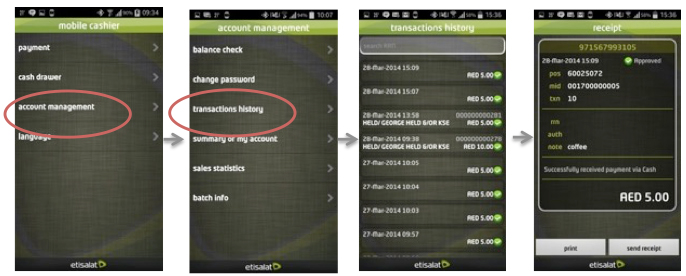
- Go to account management-Transaction history-Locate the correct transaction - Hold the menu button on the device until Void appears
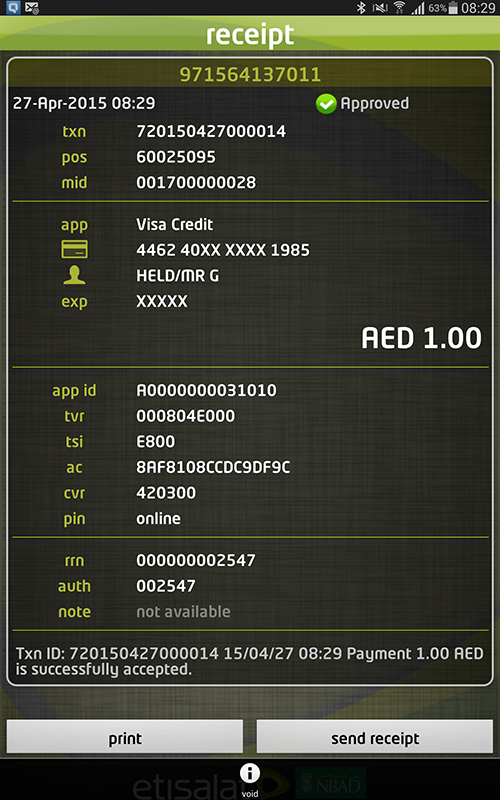
- Make sure Card reader is switch on and you have the card that was used for this transaction. Application will ask you to swipe the card (even if the card is with chip).
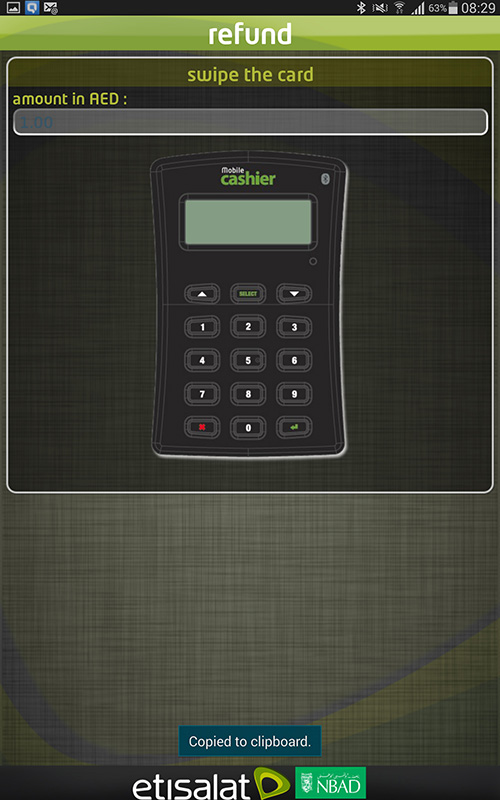
- Enter Supervisor/Cashier password
.
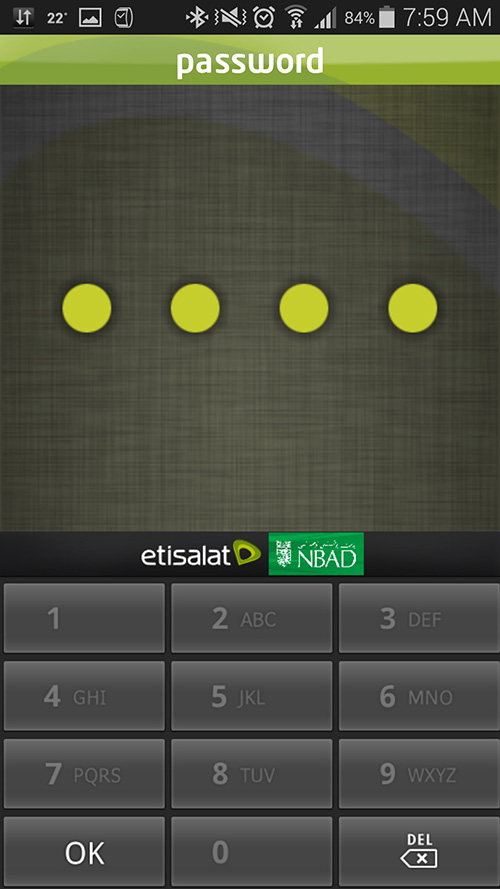
- Successful Void confirmation.
Additional functionalities
Mobile Cashier is much more than just card acceptance tool. Starting from recording cash transactions to complete control of account activity and sales performance. We took care of every small detail to help your business perform more efficiently. Everything at the palm of your hand, anytime, anywhere.
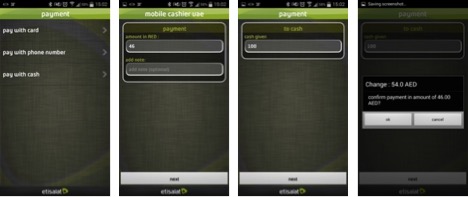
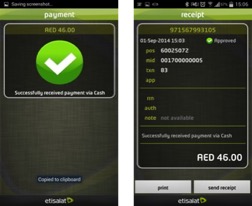
To record cash transactions:
- Select Payment-Pay with Cash
- Enter Amount Due on the phone
- Enter the Amount received from Customer. Application calculates change to be given to customer
- View your complete account activity from the app
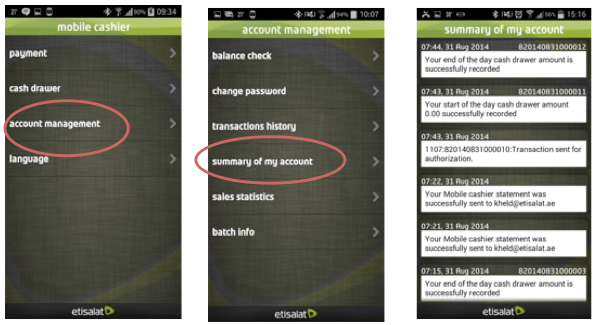
- Track payment activity.
- Select Account Management- transaction history to trace/review or void particular transaction.
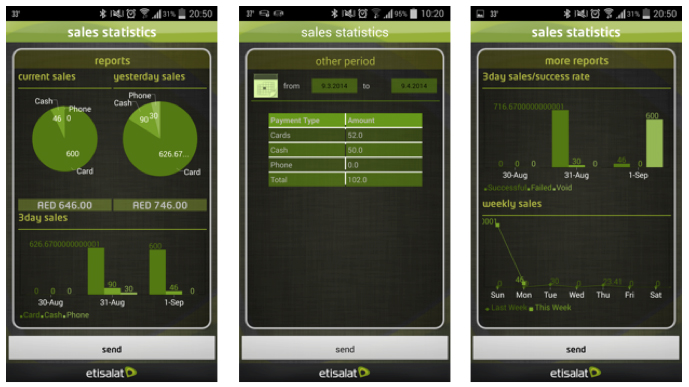
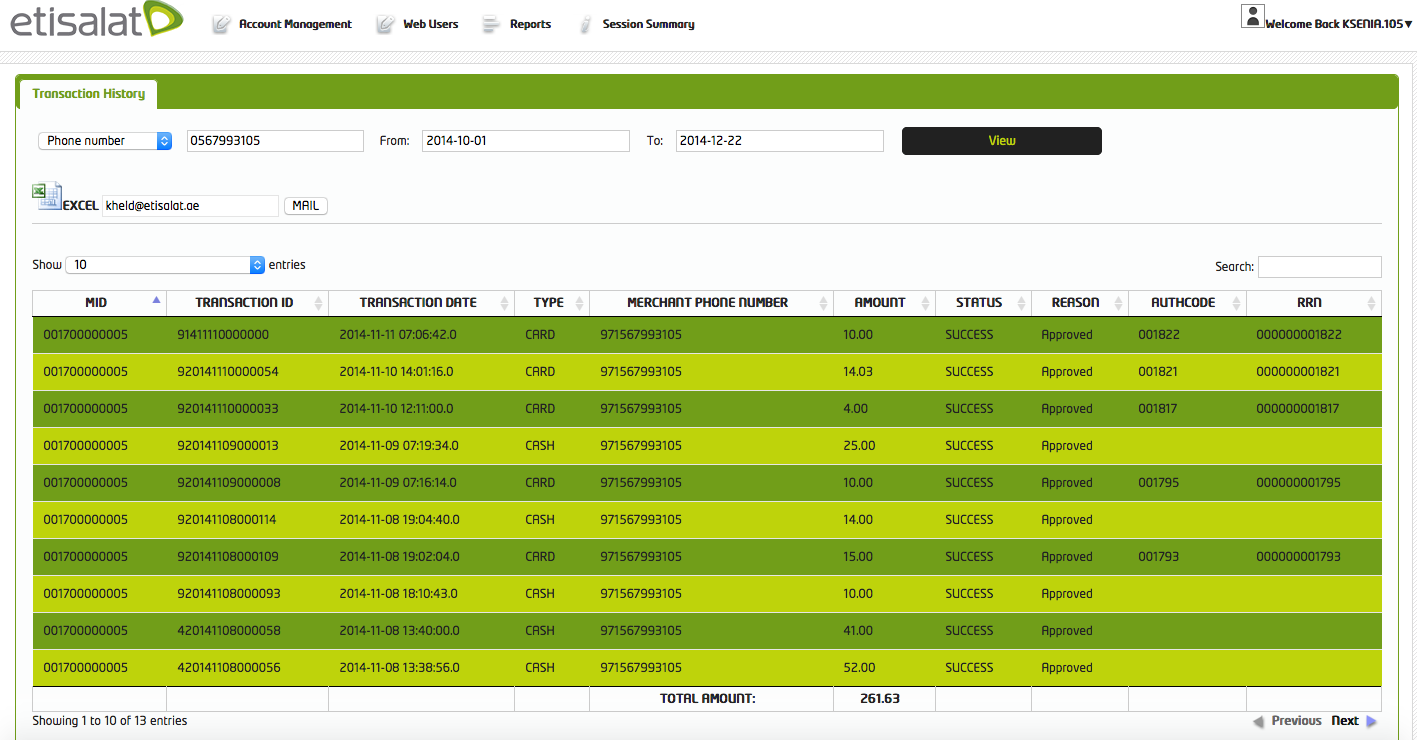
- Discover new insights into your business with Sales Statistics. View detailed information about your transactions or generate reports directly from the app or from online Merchant portal.
About mCashier

mCashier is an innovate service for business customers enabling them to accept debit and credit card based payments via smart phone and connected Card reader. Product is offered in partnership with FAB.
Location
- Etisalat, PO Box 1150. Dubai, United Arab Emirates
- P: 800 5800
We promise not to send you spam.
© 2014. «mCashier Etisalat».